
Answer a chat
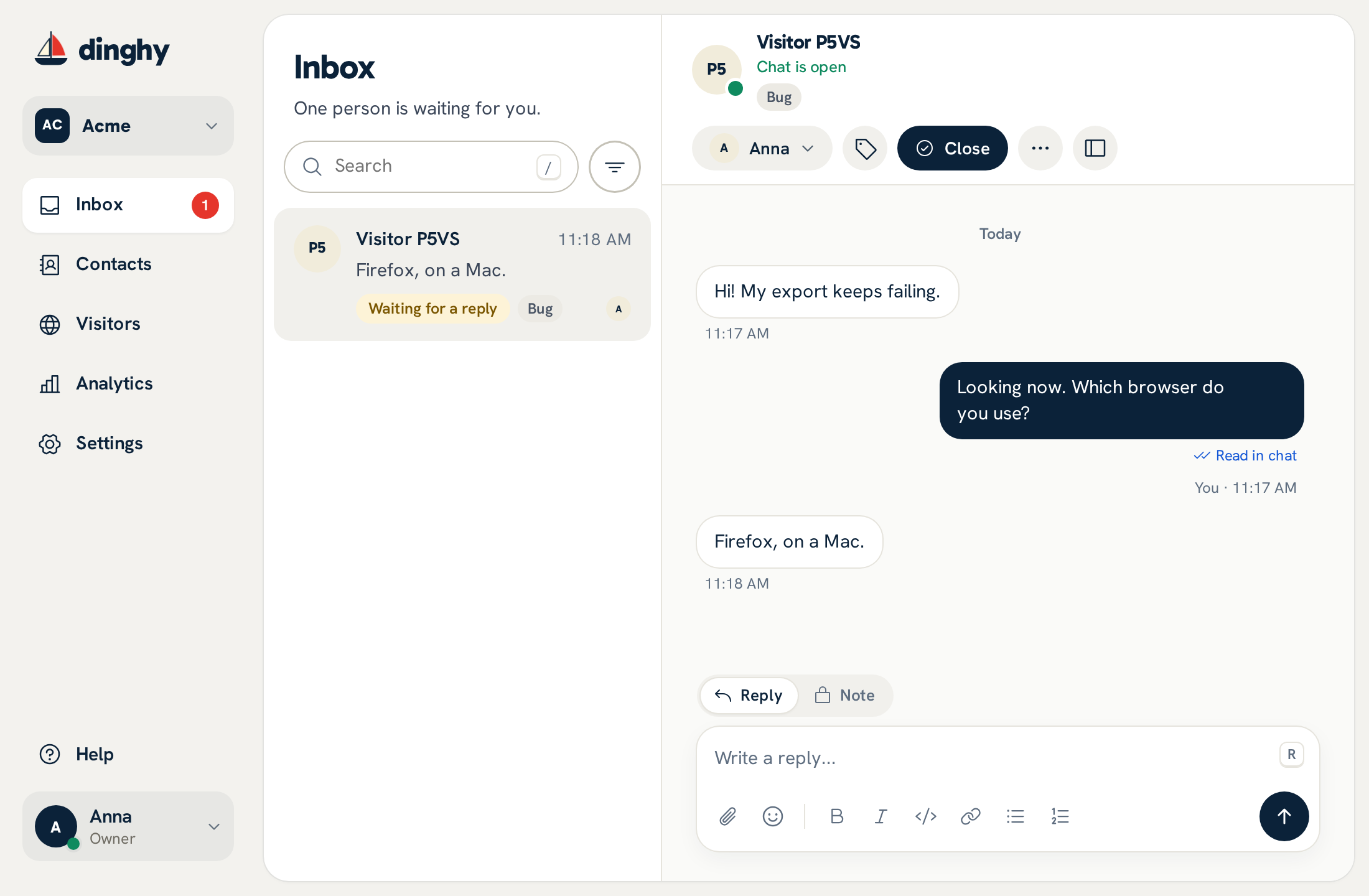
The sidebar has Inbox, Contacts, Visitors, Analytics, Campaigns and Settings. Until the first steps are done, owners and admins also see Get started above their name, with a ring, the next step and a count such as 2/5. It lists five steps, each of which opens its page: install the widget (done once a page of an allowed site loads it), add a logo, customize the widget, turn on notifications for yourself, and send yourself a message from your site (done once a conversation from your site reaches the inbox). A sixth step, invite a teammate, is optional and does not count. Dinghy checks each one itself. Hide for good hides the steps for you on every device. New conversations appear in the Inbox with no reload. The red number counts the people who wait for a reply from you: conversations assigned to you or to nobody, not a teammate's, and not snoozed ones. The tab's title shows the same number, the tab's icon gets a red dot, and an installed app shows the number on its icon. The filter button beside the search opens Open and Closed, which pick the conversations the list shows, and in a team of more than one All, Mine and Unassigned, which pick whose, and once your team has labels, Label, which lists only the conversations with one label. A dot on the button says a filter is on. The app remembers them in the address, so a reload or a shared link keeps them. Select one to read it, write in the reply box, and press Enter or the send button. On a phone, the return key starts a new line, so use the send button. If your site sends details with setContext(), they show in italics under Details. Visitors can change these details in their browser, so do not use them to verify identity or account access.
Messages can carry a little formatting, written as Markdown: **bold**, *italic*, `code`, a block between two lines of three backticks, [words](https://example.com) for a link, and lines that start with - or 1. for a list. A web address becomes a link by itself. The buttons under the reply box, and Cmd or Ctrl with B, I, E and K, add the marks around the selected words. Visitors see the formatting in the widget and in reply emails, and can type it too. Links open in a new tab, and only http, https and mailto links work. HTML, images and headings stay plain text.
To send an image or a file, paste it, drag it onto the chat, or select the attach button. An image must be PNG, JPEG or WebP, under 5 MB and under 16 megapixels. A file can be a PDF, TXT, CSV, LOG, JSON, ZIP, DOC, DOCX, XLS, XLSX, PPT, PPTX, ODT, ODS, MP4 or MOV, up to 10 MB. A file shows as its name and size, and selecting it downloads it: Dinghy never opens a file in the page. Dinghy does not scan files for viruses, so open a visitor's file with the care you give an email attachment. A CSV can hold spreadsheet formulas that run when a spreadsheet app opens it, so open a visitor's CSV with the same care, or import it as plain text.
Visitors can send the same files while Visitors can send files is on in Settings > Appearance. It is on for a new workspace, and off for one from before the release that added files, until an owner or admin turns it on. Your team can always send files.
If a message shows "Not sent", select it to try again. A retry cannot create a second copy.
To write something only your team sees, choose Note above the reply box, write it and select Add note. The box turns yellow, and the note shows in a yellow bubble labeled Internal note with its author. The visitor never sees a note, in the chat or in an email, and a note does not assign the conversation. You can edit your own notes at any time and delete them as replies. A note can quote any message, but a reply cannot quote a note. Notes take text only, and the box goes back to Reply when you open another conversation.
To ask a teammate about a chat, type @ in a note and pick them from the list, or type @ and their name as it shows in Team. The note keeps @Name in its text. Each teammate it mentions, up to 10, gets an alert with the note's text, by push and by email as their alert settings say, even when the chat is not theirs, and the conversation shows as unread for them. A note with no mention alerts nobody. When you edit a note, only the teammates it did not mention before get an alert, and the conversation stays as they last read it.
To answer a common question in your team's words, type / at the start of a word in the reply box or the note box. A list shows the saved replies whose shortcut holds what you type after it. Use the arrow keys to choose one, and press Enter or Tab to put its text in the box, where you can change it before you send. Esc closes the list.
To sort conversations, such as billing questions or bug reports, give them labels. Press L in a conversation, or select the tag button beside Who answers or in the panel on the right. Type to find a label, and check or uncheck it. To make a new one, type its name and press Enter, or select Add "name". Anyone on the team can do this, and a workspace keeps up to 100 labels. Labels show as small colored pills under the visitor's name in the conversation, and on its row in the Inbox. Owners and admins rename, recolor and delete them in Settings > Labels.
To act on several conversations at once, choose them in the list. Point at a row and check the box over its picture, press X on the open conversation, or hold Shift and check a box to choose every row between it and the last one you chose. On a phone, press and hold a row, then tap the others. While rows are chosen, a bar takes the search's place and shows how many are chosen. The box beside the count chooses every row the list shows. The bar's buttons Close them, Assign them and Label them, and the More actions menu has Mark read and, for owners and admins, Delete, which asks first with the count, such as "Delete 12 conversations?". In a read-only or suspended workspace, the bar has Mark read alone. Each conversation changes as it would alone, so webhooks and alerts behave the same. A message then says how many changed, how many needed no change, such as a conversation that was closed already, and how many were skipped. If the connection fails partway, it says what was done before it. The cross or Esc clears the choice. There is no reply to many at once.
When you close a conversation, a visitor who gave an email gets the conversation by email 5 minutes later, if someone on the team replied, with a link to continue the chat. After the first one, each email holds only the messages since the last transcript the visitor got. Reopening it within the 5 minutes cancels it. Email transcript in the conversation's … menu sends the whole conversation now. An email holds the newest messages that fit, at most 100, so Gmail does not cut it, and says how many earlier ones are in the chat. Settings > Appearance turns the email at close off.
Under your team's last reply, a small line says how far it got: Sent when Dinghy stored it, Sent by email when a reply email carried it to the visitor, Email failed when that email could not go, and Read in chat once the visitor has seen it in the widget. Point at an earlier reply to see its line. The line changes by itself when the visitor reads.
When your server has replies by email on, a visitor can answer a reply email or a transcript. Their answer goes into the conversation that email was about, reopens it if it was closed, and alerts you like any message. A small line under it says Replied by email. Dinghy keeps what they wrote above the quote of your email, and up to 5 attachments with the chat's limits. When an attachment could not go in, the message says so. If the answer came from an address other than the visitor's email, such as an address it was forwarded from, the line names it: Replied by email from ada@example.org. The reply address proves which conversation the answer belongs to, not who wrote it, so check before you share account details.
If two of you open the same conversation, each sees "… has this conversation open", so you do not answer twice. It means only that the conversation is open on their screen.
While a visitor with an open conversation types in the widget, the thread shows their words in a faded bubble with moving dots, and the Inbox shows typing... in place of the last message. It goes when they send, empty the box, or stop for 6 seconds. Dinghy does not store these words. An owner or admin turns this off with Show what visitors type before they send in Settings > Workspace, and then the widget stops sending unsent text.
Visitors shows who is on your site now: a world map with a yellow dot for each country, larger with more people, and below it each open page with its country, the visitor's local time, the page, how long they have been on the site, their device and where they came from. A visitor who has chatted shows their name and Chatting, which opens their conversation, or Waiting with the minutes since their last message when it still has no reply. The filters at the top show Everyone, Chatting, Waiting and Known, and next to the count of people on the site a small chart shows the last hour. Under the list, a line gives the median and longest time on site of the people listed, and how many are in daytime where they are. Below the map, Pages now, Came from now, Countries and Devices count the people here now. The site's numbers over a period are on Analytics. The number next to Visitors in the sidebar counts them. A tab leaves the list a minute and a half after it closes or goes to the background. What the widget sends explains what this collects.
To find a conversation, type at least three characters in the search box above the list. It searches open and closed conversations by the visitor's name, email or user ID, and by what anyone wrote, and shows the matching message under each one. Press Escape or empty the box to go back to the list.
Under the visitor's name, the header shows their email and user ID, when the name does not already show them, and the page where they started. The next line shows Chat is open while the visitor has the chat open, or when they were last seen, then their browser and system, such as "Chrome on macOS". Below that is the last page they were on, which opens in a new tab; when it is the page where they started, the header names it only once. If Dinghy cannot tell whether they are online, it says nothing about it. On the right are the controls:
| Control | What it does |
|---|---|
| Who answers | A list that gives the conversation to one person on your team or to the whole team, which takes it from a bot, or back to the bot that took part last |
| Close | Moves it under Closed in the Inbox and opens the next conversation in the list, or none when no other is left. If a reply is still sending or failed, the conversation stays on screen so you can retry it. Reopen brings it back. If the visitor writes after a close, their message reopens it, with its assignee |
| … then Snooze | Keeps it open, but out of the people waiting for you: until they reply, until tomorrow (9:00 your time) or until next week (Monday 9:00). The list shows Snoozed in place of Waiting for a reply. A message from the visitor ends it, and your own replies do not. Unsnooze in the same place ends it now, and so does a close |
| … then Block | Stops this visitor from sending messages. Unblock in the same place undoes it, and so does Blocked visitors in Settings > Workspace |
| … then Delete | Deletes the conversation and its images and files for good, after you confirm. Owners and admins only |
For a signed-in user, the conversation shows the name, email, user ID and custom attributes that your site sent. An attribute that is a web address is a link.
On the right of a conversation, a panel shows who the visitor is: their name, email and whether the chat is open, who answers and the status, their country with its flag, local time, device, the language of their chat and current page, then folds for Details (the user ID, the signed attributes, and what the page sent in italics), Pages visited, Other conversations of the same person, and a Note that only your team sees, saved when you click away. Each fold opens or closes, and the browser remembers it. The button at the right of the header shows or hides the panel. On a screen under 1200 pixels wide, it opens over the conversation instead.
View contact opens the person's page under Contacts in the sidebar. Contacts lists everyone who has started a conversation, with their company (a signed company attribute), country, when they were last seen and first seen, and how many conversations they had. Search by name, email or user ID, sort by last or first seen, and Export CSV downloads them all. Attributes and events, beside People, lists the attributes and events your app sends about the 1,000 contacts seen last, with how many contacts have each, when it was last seen and the campaigns that use it, so a misspelled or unused name stands out. A contact's page shows the person on a blue band: their name, Signed in when your site signs them in, their company, email with a copy button, and whether they are on your site now with the page they are on, or when they were last seen. Open conversation opens their newest open conversation, or their newest one when none is open. Tiles show their local time, location, device, when they were first seen and how many conversations they had. Under them, Conversations lists each conversation with its status, last message, message count, assignee or who closed it, and how long the first reply took, and Pages visited shows the pages as a timeline, with a pause of over 30 minutes before another day starting an earlier visit under its date and the current page marked Here now. Beside them are the Note and Details from your site. The … menu has Edit name and email for a visitor your site did not sign in, Block or Unblock, and for owners and admins Delete contact, which deletes the person with all their conversations, messages and images.
Pages visited lists the pages the visitor went through after they first chatted, newest first, with how long ago. Each one shows the page's title, or its address when it has none, and opens in a new tab. It shows 5, and Show all shows up to 20. The list reads the pages again every 30 seconds. Dinghy keeps a visitor's newest 100 pages for 90 days, and deleting the visitor's last conversation deletes them.
Keyboard shortcuts
Press ? anywhere in the app, or open Help at the bottom of the sidebar, for the list of keys. Help also links to these docs. The app shows a key where it applies too: next to a sidebar item when you point at it, in the empty search and reply boxes, and in a button's tooltip.
| Key | What it does |
|---|---|
| ? | Shows every shortcut |
| / | Puts the cursor in the search box |
| G then I, C, V, A, M or S | Opens Inbox, Contacts, Visitors, Analytics, Campaigns or Settings |
| J and K | Open the next or the previous conversation in the list |
| X | Chooses the open conversation for a bulk action, or takes it out |
| R and N | Put the cursor in the reply box, as a reply or as a note |
| Shift+E | Closes the conversation and opens the next one in the list. On a closed conversation, reopens it |
| A and I | Open Who answers, or assign the conversation to you |
| L | Opens the conversation's labels |
| . | Opens the … menu |
| P | Shows or hides the visitor's panel |
| Esc | Leaves the reply box, so the keys work again. On a small screen, it also goes back to the list |
The keys work only while you are not typing in a box. If you use speech input, or keys run by mistake, turn off Single-key shortcuts in the list of keys. This applies only to this browser.
See how support is going
Select Analytics in the sidebar. Every member can see it. Pick the last 7, 30 or 90 days in the list at the top right. Days and hours are in your browser's time zone, which the line under the title names.
The Conversations tab is about the conversations that started in that period:
| Number | What it means |
|---|---|
| Conversations started | How many started |
| First reply time (median) | Half of the answered ones got their first reply within this time, counted from the conversation's start. Unanswered ones do not count |
| First reply time for 90% of answered chats | 9 in 10 of the answered ones got their first reply within this time. Unanswered ones do not count |
| First reply within 5 minutes | The share of all of them, answered or not, with a first reply within 5 minutes |
| Started in this period and now closed | How many of them are closed now |
Under a number, a change compares it with the period of the same length just before, so a week that ends now is compared with the 7 days before it.
A first reply can come from a person on your team or from software that uses an API key. Both count. On Dinghy Cloud, the welcome chat counts nowhere.
Below are the conversations per day, Who sent the first reply, by person or API key, the busiest hours, as a grid of weekdays by hours where a darker square means more conversations started then, and Conversations by label, which counts the period's conversations by each label they have now. Hold the pointer over a bar, a square or a point of a small line to see its number. With no conversation in the period, the tab says so.
The Your site tab shows the same period for the site: the visits with their chart per day, page views, the chat rate (chats that visitors started per visit) and the busiest moment, the most people on the site at once. Each compares with the period just before once Dinghy has counted the site for that long. Top pages and Top sources list the pages people saw most and the sites they came from. A visit is a page opened from another site or from nowhere, so a click from one of your pages to the next is not a new one. Dinghy counts each hour with no cookie and no stored ID, and keeps the hours 182 days.
Send campaigns
Select Campaigns in the sidebar. A campaign sends a message by itself, to the people who match its audience, when its trigger comes. The list shows each campaign's status, its trigger and how many messages it sent, and how many were read, answered or reached the goal. The tabs above it keep one status. Each row's ⋯ menu has Rename, and Delete campaign while the campaign never sent a message, or End campaign once it did. Start from a template under the list, or with New campaign.
The editor has the name and key, the audience, the trigger and the message. The pencil beside the name says you can rename it in place. More options holds an A/B test, how it shows, its delivery, with both email settings, and its rules, and opens by itself on a campaign that changes one of them. An attribute key or an event name suggests the ones your contacts have. The message's text shows a variable that does not read, such as {{ nickname }}, under it. The audience counts the people who match now, and a trigger on a match or an event says how many people it would have reached in the last 7 days. The preview beside it shows the message as visitors will see it, with its variables filled for a sample contact named Alex, in light or dark, in each language and on a phone. A visitor gets the translation for their chat's language, and anyone else gets Default. An A/B test splits people by shares in percent.
From picks who the message comes from: the team, a member, or Whoever saves it, which is you once you save. A new campaign has Save draft, and a saved draft saves itself as you type. Go live asks first, with what the campaign will do, then starts it. A live campaign has Save and Pause, and a paused one Save and Resume. A pause keeps the changes you have not saved yet. The ⋯ menu has Send me a test, which sends the saved campaign to a test visitor named after you and says which rule would hold a real message now, Copy as code, which gives the same campaign as JSON and as an SDK call, and Delete campaign or End campaign. Deleting a live campaign pauses it first. Results shows its numbers per day, per variant and per button. Campaigns explains each part.
The page's ⋯ menu has Pause all campaigns while a campaign is live, which holds every campaign's messages until you resume them, and the banner says who paused them. Pausing the bots does not pause campaigns. Time between messages is the fewest hours between two messages from any campaign to one visitor.
Every member can read campaigns and send a test to themselves. Only owners and admins can change them.
Get alerts
Open Settings > Notifications. These settings affect only you, and each one has its own scope.
- Browser notifications sends a push notification when a visitor writes, and when a teammate mentions you in a note. It is set per browser, and covers every workspace you are in. Turn it on in each browser you use. Select Turn on, then Send a test to see if it works. A private window usually cannot turn this on.
- Email me about new messages is set per workspace, so turn it on in each workspace where you want emails. It needs a mail server on your Dinghy install. A burst of messages in one conversation sends one email. A note that mentions you sends its own email each time.
- Play a sound for new messages is set per browser. It plays a short chime when a visitor writes in a conversation you don't have open, or while the app's window is in the background. It is on unless you turn it off. The browser plays it only after your first click or key press in the app. A tab you are not on holds no live connection, so it stays silent: turn on notifications for that.
On an iPhone, a web app can show notifications only from the Home Screen:
- Open your Dinghy address in Safari.
- Select Share, then Add to Home Screen.
- Open Dinghy from the Home Screen, and turn on notifications there.
On Android and on a computer, you can install the app from the browser's menu, but it is not necessary.
A phone can delay or drop a notification, so do not rely on one for urgent work.
Your profile
Select your name at the bottom of the sidebar, then Profile. This opens Settings > Profile, where you change the name your teammates see. Visitors see only your first name, next to your replies. Sign out is in the same menu.
The same menu sets you Available or Away, and a dot on your picture shows which: green or gray. It holds in every workspace until you change it. The chat on your site says the team is online while one member is available with the app open, even in a background tab. While you are away, it does not count you, and it says so at its next check, within 30 seconds. Your team still sees which conversation you have open.
Picture in Profile sets your picture from a PNG, JPEG or WebP of up to 2 MB. Dinghy cuts it to a square. Visitors see it next to your replies and at the top of the chat, and your team sees it in place of your initials in the inbox, a conversation and Team. It is the same in every workspace.
Theme picks light, dark or Use device setting for the operator app. It applies only to this browser.
Two-step sign-in
After the email link, two-step sign-in asks for a 6-digit code from an authenticator app, such as 1Password, Google Authenticator or Authy. Someone who can read your email still cannot sign in. API keys and connected apps do not use it: they are workspace keys, not sign-ins.
To turn it on, open Profile, select Turn on under Two-step sign-in, and scan the QR code with the app, or type the key under it. Enter the code the app shows, then select Turn on. Dinghy then shows 10 recovery codes, once. Copy or download them, and keep them somewhere other than your authenticator app. Each one signs you in once in place of a code. Your other open sessions ask for a code at their next request.
Each new sign-in then opens Enter your code after the link. Nothing else in the app works until you enter a code from the app or a recovery code. A code works once. After 5 wrong codes in 15 minutes, Dinghy signs you out and refuses every code until 15 minutes after the first wrong one.
Profile shows how many recovery codes you have left. To replace them, select New recovery codes and enter a code from the app. Dinghy shows 10 new codes, once, and the old ones stop working.
To turn it off, select Turn off and enter a code from the app or a recovery code. Sessions that never passed the check end.
Settings > Team shows who has it on, and Removal requested while someone asks to remove it.
When the server can send email, Dinghy emails you when two-step sign-in is turned on or off, when a recovery code is used, and when too many wrong codes sign you out. If you did not do it, someone may be able to read your email.
If you lose your authenticator app
If you still have a recovery code, enter it on Enter your code, then make new codes in Profile.
If you lost your authenticator app and your recovery codes:
- Sign in with a new email link.
- Within 15 minutes of the link, select Lost your authenticator app and your recovery codes? on Enter your code.
- Select Start the 72-hour wait.
After 72 hours, Dinghy removes two-step sign-in from your account and signs out every session. Your next sign-in needs only the email link, and asks whether to turn two-step sign-in on again.
The request starts only when someone else can stop it: another owner or admin of one of your workspaces, or another session of yours that passed the check, such as a signed-in laptop. Dinghy then warns:
- you, by email, with a link to cancel, and again 24 hours before the end
- your devices that get alerts, with a push alert
- every session of yours that passed the check, with a banner and Cancel the request
- the owners and admins of your workspaces, by email and in Settings > Team
To stop the request, do one of these:
- Select Cancel the request on the page that the email's link opens. Opening the link alone changes nothing.
- Select Cancel the request on the banner.
- Enter a code from your app or a recovery code on Enter your code.
A cancel signs out every session that never passed the check, and no new request can start for 7 days. Dinghy also emails you to secure your email account, because someone else may read it.
If nobody else can stop the request, the screen sends you to a manual review instead. On Dinghy Cloud, write to the address it shows, with your last invoice number and the last 4 digits of the card that pays for Dinghy. On your own server, ask its admin to run chat two-factor-reset <email>, as Self-hosting shows.
Reset a teammate's two-step sign-in
In Settings > Team, owners reset two-step sign-in for admins and members, and admins for members, with the lock button on their row. Nobody resets an owner. It works only for a teammate who is in no other workspace, and the button shows the same note for every teammate it does not apply to. Check with your teammate by voice or in person first, because someone who reads their email could pretend to be them. The reset removes it at once and signs out their sessions, and your teammate and the other owners get an email.
Delete your account
Delete my account is in Profile too, on the payment screen, on the screen that asks for an invite, and on the workspace setup once you have been in a workspace. It takes you out of every workspace, ends your sessions, and erases your name and email. The workspaces keep their conversations, and your old replies show as from "Former team member".
A workspace where you are the only owner does not stop the delete. If other people are in it, the admin who joined first becomes its owner, or, with no admin, the member who joined first. If nobody else is in it, it is deleted with your account, with all its conversations, and on Dinghy Cloud its subscription ends. The dialog lists what happens to each of these workspaces before you confirm.
A self-hosted server keeps its last workspace. If you are the only person in it, your account stays. To delete your workspaces one by one instead, use Delete workspace on each workspace's Workspace page.
With a mail server, Dinghy emails you a confirmation link. Open it within 15 minutes, then select Delete my account. Opening the link deletes nothing. Without a mail server, you type your email to confirm, and the account goes at once.
Set up your team
Everyone can open Settings. A list on its left groups the pages:
| Group | Pages |
|---|---|
| You | Profile, Notifications |
| Workspace | Workspace, Team, Saved replies, Labels |
| Chat widget | Appearance, Install |
| Developers | API & webhooks |
Each page has its own address, such as /settings/team?workspace=<id>, so a reload, a bookmark or a shared link opens the same page of the same workspace. On a phone, the list is its own screen, and Back on a page returns to it. A member sees Profile, Notifications, Team, Saved replies and Appearance, and cannot change the team or the chat's look. Owners and admins see every page, Labels too.
To invite someone, open Settings > Team, select Invite someone at the top of the page, enter their email, pick a role, and select Send invite. Dinghy emails them a link to join. Without a mail server, select Create invite link instead, and send the link to that one person. Pending invites show in the team list with their email and the days they have left. Select the trash icon, then Cancel invite, to cancel one. To send an invite again, invite the same email again: the old link stops working. A link works once and lasts 7 days, and only that email can use it.
Someone new opens the link, enters a name and selects Join. That creates their account, joins the workspace and signs them in. Someone who already has an account with that email selects Join, and Dinghy emails them a link that joins the workspace and signs them in. Someone already signed in with that email selects Join at once. Without a mail server, nothing checks the email, so send the link only to the person it is for. Someone who already has an account there signs in first, then opens the invite.
| Role | Can do |
|---|---|
| Member | Answer, assign, close and block |
| Admin | The above, and delete conversations, change settings, and invite or remove members |
| Owner | The above, and invite admins, change roles, and download exports |
A workspace always keeps an owner. While you are the only one, your role stays Owner and you cannot leave: make someone else an owner first.
Someone in two workspaces switches between them with the workspace name at the top of the sidebar. On Dinghy Cloud, the same menu has Create a workspace.
Change the widget
Settings > Appearance changes how the chat looks and behaves on your site, with no code. The preview beside the form shows each change before you save: the open chat, with the chat button under it, in light or dark colors. On a phone, the preview sits above the form, and Hide the preview folds it away.
- Chat text: the chat's title, its greeting before the first message and its message for when nobody is online. An empty field keeps Dinghy's own text. Language sets the widget's own words, such as its buttons, in English, French or Spanish, or Visitor's language, the first of the visitor's browser languages that the widget speaks, else English. Your title, greeting and away message stay as you wrote them. The preview shows the language this browser would get.
- Colors and layout: the main color and the accent color, the side of the page, the theme (light, dark, or Use device setting, which follows the visitor's device), the chat button (a bubble, a label with the chat's title, a square, a boat, or hidden so your own button opens the chat), the corner rounding, and whether the open chat shows the boat.
- Header: whose faces show beside the chat's title: Online now (the members online at the moment, or the members who replied last when nobody is), Latest repliers, Members you choose (in your order; a member who leaves the team is skipped), or None. Then how many, 1 to 5, and whether a green dot marks each member who is online. The Status line under the title says Online or your away message, or with Usual reply time, "Usually replies in 2 min" while someone is online, from the median first reply time over the last 30 days. Before the first reply, it says Online. The preview marks two members online, so you see the dots.
- Email and branding: when to ask visitors for their email, so you can reply after they leave: never, after their first message, or before it. Dinghy never asks a signed-in user, nor anyone when your server sends no email. A switch hides the "Powered by Dinghy" line under the chat.
Save sends the form. Pages of your site that open after the save show the change within 5 minutes, and a page already open keeps the look it loaded with. The browser asks before you leave the page with a change you did not save. The top of the chat shows the workspace's logo, which you change in Settings > Workspace. It also shows the faces that Header picks, by first name and picture. Attributes in your site's tag win over these settings: see Add the chat to your website.
Business hours
Settings > Business hours says when your team answers. Owners and admins see it. Turn on Use business hours, pick the Time zone, which starts as your browser's, and give each day up to 3 ranges, such as 9:00 to 12:30 and 14:00 to 18:00. A day with no range is closed, and a range that ends at 00:00 runs until midnight.
Outside these hours, the chat's header shows your away message from Settings > Appearance and "We're back Monday at 9:00 AM", on the visitor's own clock and with the date when that is more than 6 days away, in place of Online or the usual reply time, even when a member is online. It asks for the visitor's email before the first message, or after it for a visitor who has chatted, whatever the email setting says, so your reply can reach them. Visitors can still write, and nothing is added to the conversation. Inside the hours, the header works as before. Pages of your site that open after a save follow the change within 5 minutes.
The other settings
Settings > Install has four sections. Owners and admins see it.
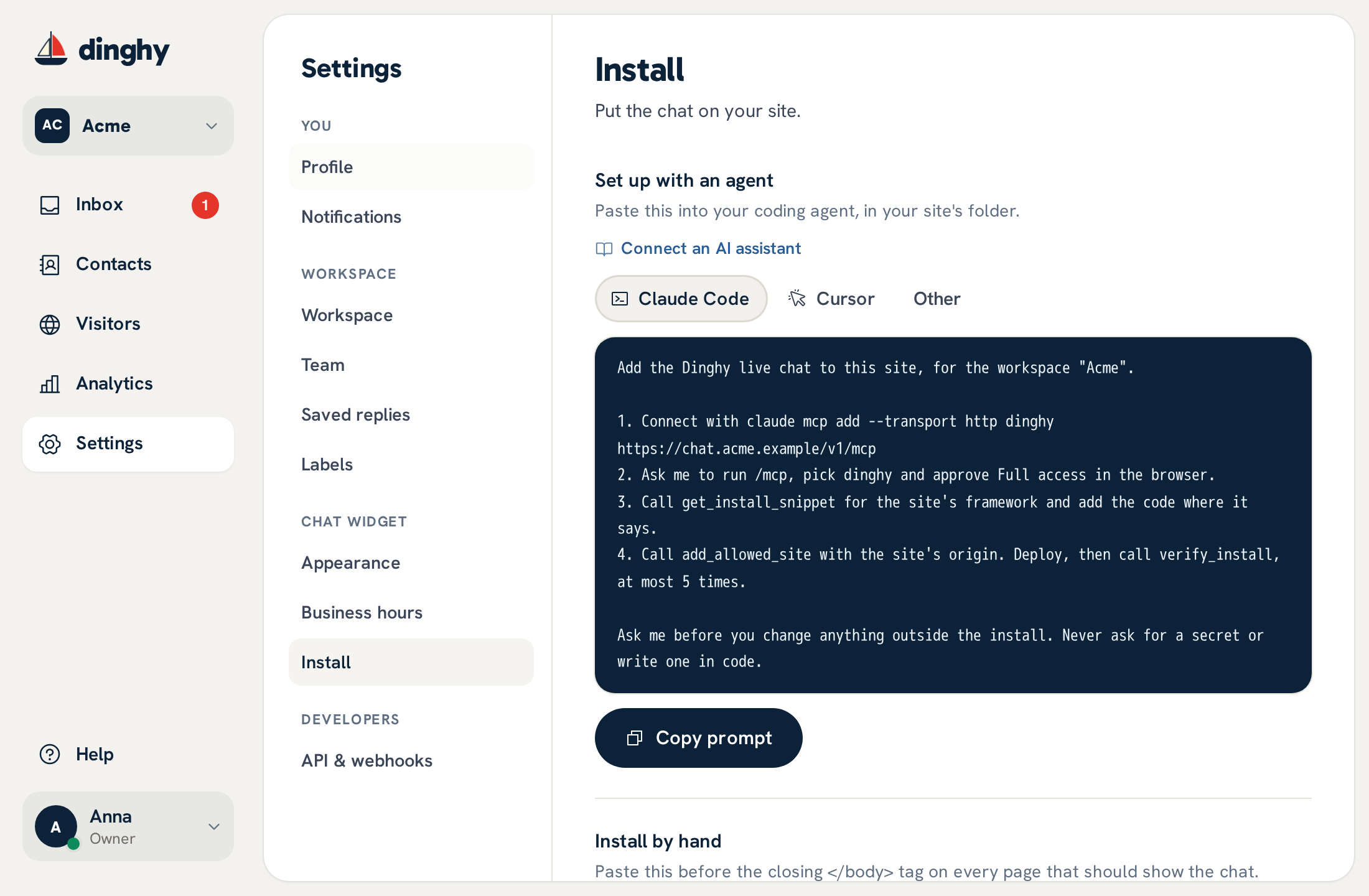
- Set up with an agent has a prompt for Claude Code, Cursor or another coding agent, with Copy prompt. The agent installs the chat through MCP once you approve it in the browser.
- Install by hand has the tag for your site, with a Copy button.
- Allowed sites lists the sites that can load the chat, one per row. Add a site adds a row, and each row says if its address is not a site such as
https://example.com. - Identify signed-in users (optional) holds the identity signing secret, for signed-in users. Ordinary chat does not need it. It stays hidden until you select the eye. Replace the secret asks first, because the old one stops working at once.
Settings > API & webhooks has the workspace's API keys, for your own scripts and AI assistants, and its webhooks, which tell another app about new conversations and messages. Both are optional. A key's token and a webhook's secret show once, so copy them then. A key's replies show its name, and Revoke stops it at once. Apps that you connected in the browser, such as Claude Code, show there too, with Disconnect, and Use Dinghy with AI agents explains them. The card at the top counts them, and its switch pauses every bot. Owners and admins see this page.
Saved replies
Settings > Saved replies holds the replies your team writes once and inserts with /. Every member can add, change and delete them. New saved reply asks for a Shortcut, of lowercase letters, digits and dashes, such as refund-policy, and the Text, with the same formatting as a message. A workspace keeps up to 200, and no two saved replies share a shortcut. A saved reply has no placeholders, such as the visitor's name, because most visitors do not give one. Bots read them too, through the API and MCP, so they can answer in your team's words.
Labels
Settings > Labels lists the workspace's labels, for owners and admins. New label asks for a Name, up to 40 characters, and a Color, one of eight. Edit renames or recolors one, and Delete takes it off every conversation that has it. No two labels share a name, whatever the case, so "Billing" and "billing" are one label. Anyone on the team adds new labels from a conversation too, with L.
Settings > Workspace is for owners and admins. It has these sections:
- Workspace name: owners and admins change it here, and the sidebar shows the new name at once.
- Logo: it shows in the workspace menu and at the top of the chat, in place of the boat. Use a square PNG, JPEG or WebP of up to 2 MB. It saves as soon as you pick it.
- Plan and usage, on Dinghy Cloud. When the cloud takes payments, an owner finds it in Settings > Billing instead. See Plan and usage.
- Blocked visitors, once someone is blocked, with Unblock for each one.
- Export workspace, for owners: Download an export saves the workspace's conversations, images, files, team and settings as one file, which imports into another Dinghy server. See Moving a workspace.
- Delete workspace, for owners. See Deleting a workspace.
Plan and usage
This applies to Dinghy Cloud only. A self-hosted server has no plan limits.
Each workspace on Dinghy Cloud includes up to 5 team members and 1 GB of files. Settings > Workspace shows how much of each is in use, or Settings > Billing for an owner once the cloud takes payments, and the Team page says how many of the 5 places are taken.
- Team members: pending invites count toward the limit, because each one can still become a member. An invite stops counting once it is used, canceled or expired, after 7 days. To free a place, remove someone in Settings > Team, or cancel a pending invite.
- File storage: the images and files sent in chats count, by their stored size. Dinghy Cloud deletes each one automatically 12 months after it was sent, and the conversation shows "Image removed after 12 months" or "File removed after 12 months" in its place. The text stays. To free space now, an owner or admin deletes conversations that hold images or files. When an image or a file does not fit in the space left, Dinghy refuses it, for your team and for visitors, and text still sends.
Billing
This applies to Dinghy Cloud only. A self-hosted server has no billing.
Dinghy Cloud costs $9 a month per workspace, and Stripe takes the payment. You pay when you create the workspace: after you name it, Dinghy opens Stripe's checkout, and the workspace opens once Stripe confirms the payment. Only an owner pays. A member who opens an unpaid workspace sees that it waits for an owner. The subscription renews each month.
An owner has a Billing page in Settings. It shows the plan, its price and its state, such as the date it renews, then the usage, the card that pays, and the recent invoices. View opens an invoice on Stripe, with its PDF. Manage billing and Change the card open Stripe, where you change the card or cancel. When you leave Stripe, you come back to the Billing page. A canceled subscription keeps the workspace working until the end of the month you paid for, and the owners get an email 3 days before that end.
If a payment fails, the workspace keeps working for 7 days, and the owners get emails about it. A banner asks the owner to update the card. If no payment succeeds in those 7 days, Dinghy ends the subscription.
When the subscription ends, the workspace becomes read-only for 90 days. The chat widget is off, and nobody can reply to visitors. Your team can still sign in, read the conversations and download an export. The owners get an email 30 days and 7 days before the deletion. To keep the workspace, an owner selects Restart subscription in the banner above the inbox, and pays again through Stripe. After the 90 days, Dinghy deletes the workspace and its data.
Deleting a workspace yourself ends its subscription that day, with no refund.
If no sign-in link arrives
Check your spam folder, and ask for another link. Each one works once, for 15 minutes, and an email gets at most 20 links an hour.
If your Dinghy install has no mail server, the sign-in page says so. Then the person who runs the server makes a link for you:
docker compose exec app chat sign-in-link you@example.com